Marketing & Pop Ups
Pop-ups, review requests and in-platform marketing tools.
Marketing & Pop Ups: questions and answers
Turn on the built-in Google Review popup to nudge happy guests to leave a review — no API key required.
The Google Review popup lives in the Popup manager (Operations → Marketing → Popups) as a dedicated trigger group at the top of the Guest Journey Timeline. Start from the "Google Review Request" template, connect your Google listing so reviews are linked automatically, choose how often guests see it, then publish. Guests who tap through land straight on your Google review page.
Open Marketing → Popups and find the Google Review group at the top of the Guest Journey Timeline.
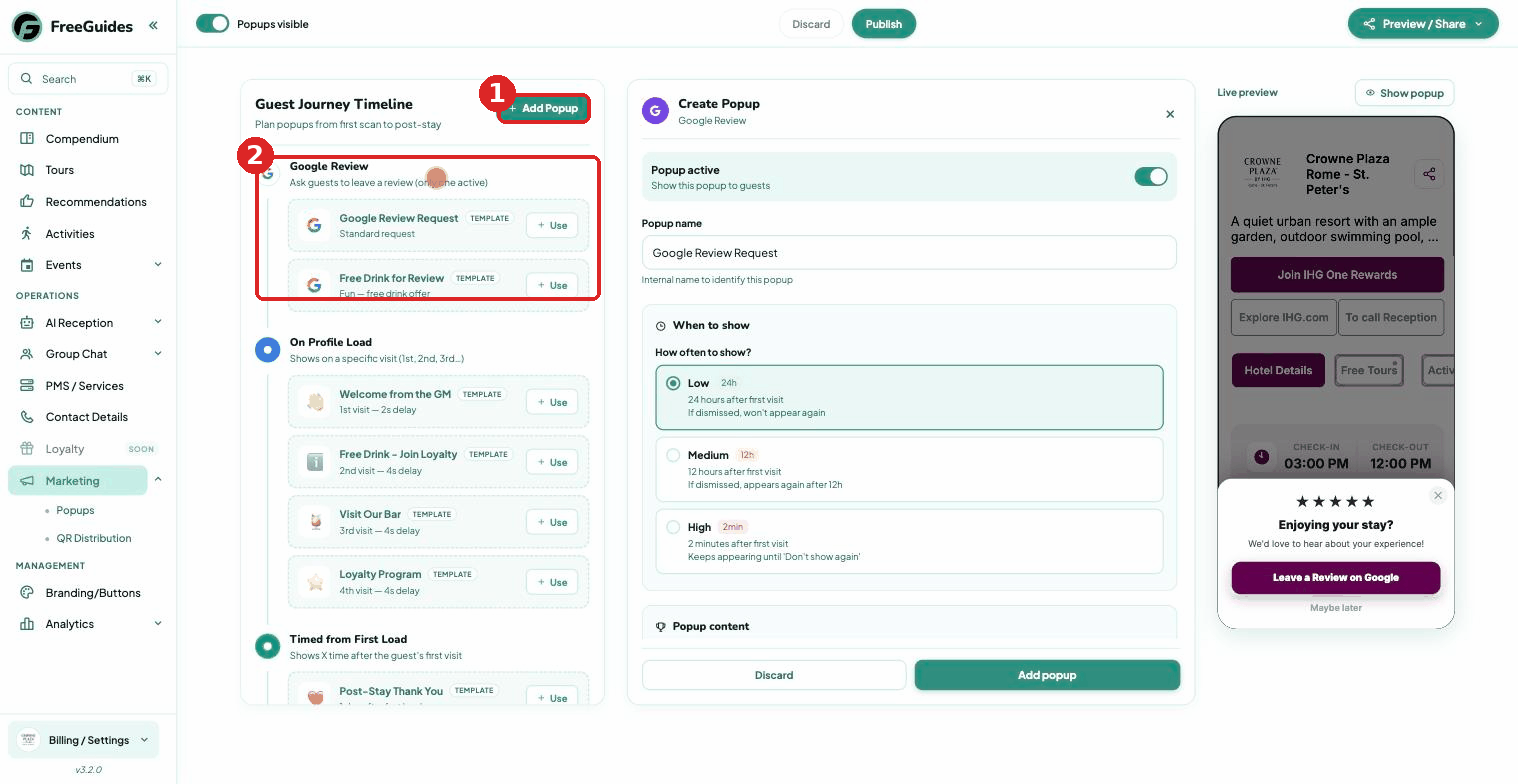
The Popups page — (1) Add Popup, (2) the Google Review group in the timeline. Click Use on "Google Review Request" to open the editor.
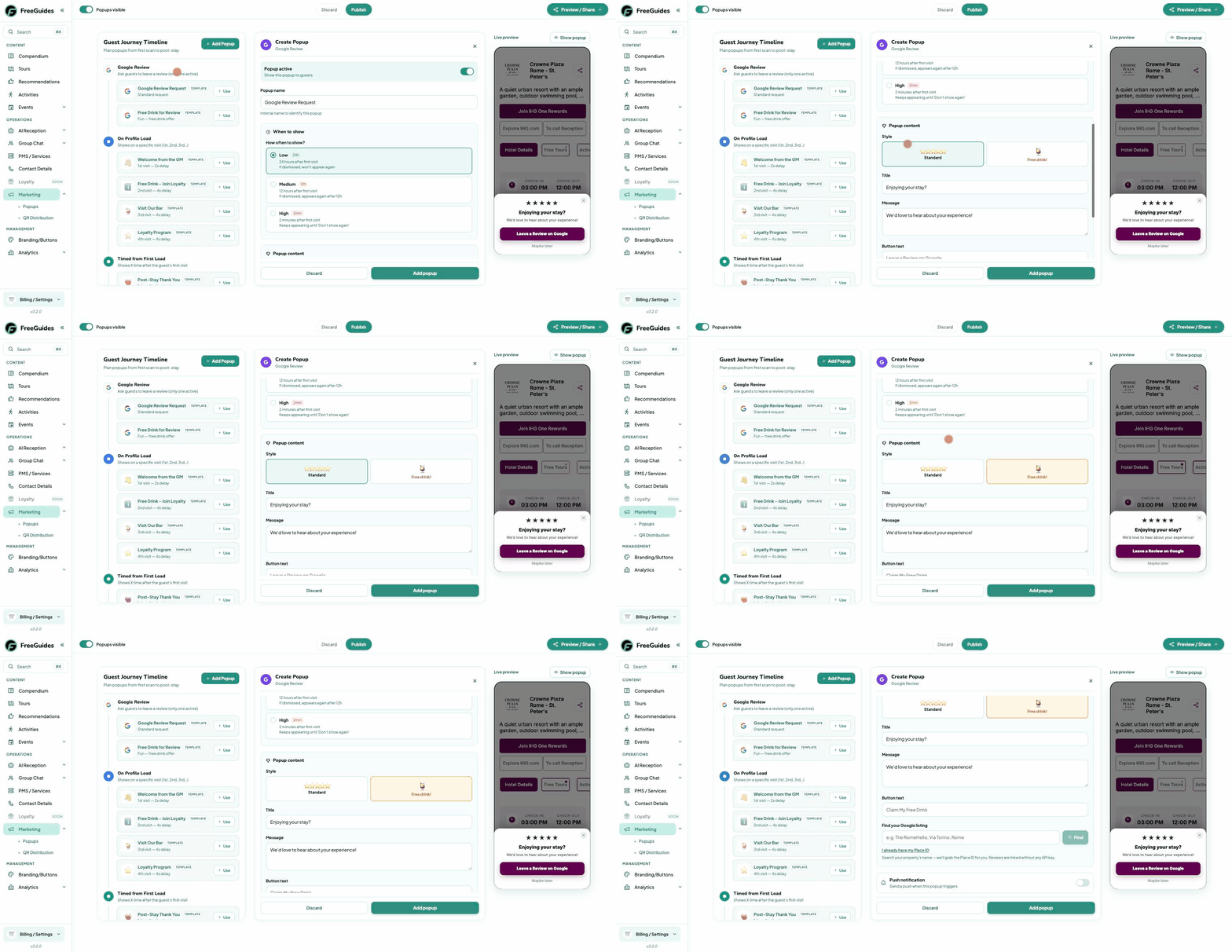
Creating the Google Review popup from the template. Search your property name under Find your Google listing — FreeGuides grabs the Place ID for you, no API key needed.
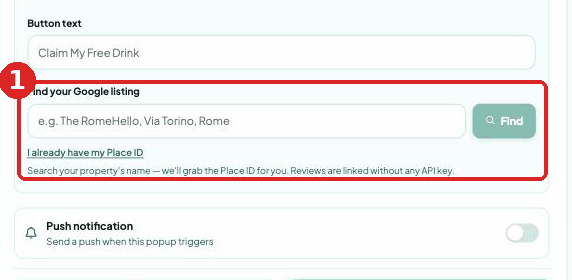
Find your Google listing — reviews link without any API key. Pick how often it shows, then Add popup and Publish.
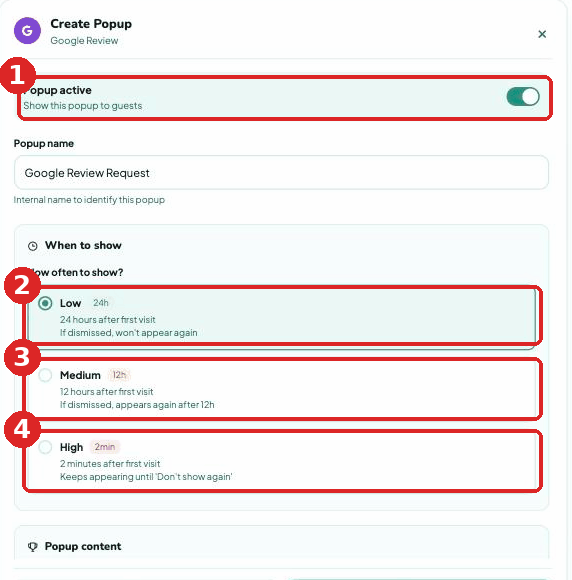
Set the frequency, then Add popup and Publish.
Tip: Only one Google Review popup can be active at a time — that's deliberate, so guests are never asked twice.
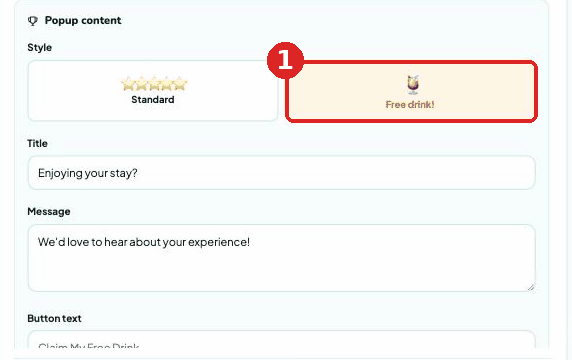
You can — the review popup ships with two built-in styles: a simple Standard ask or a Free drink incentive.
In the popup's Popup content section, pick a Style. Standard shows a clean star-rating ask ("Enjoying your stay?"), while Free drink! swaps in an incentive and a "Claim My Free Drink" button. A small reward can lift response rates, but it is optional — many properties do well with the Standard style alone.
Three frequency presets control how soon and how often the popup shows, and a one-popup-per-visit guardrail keeps guests from being bombarded.
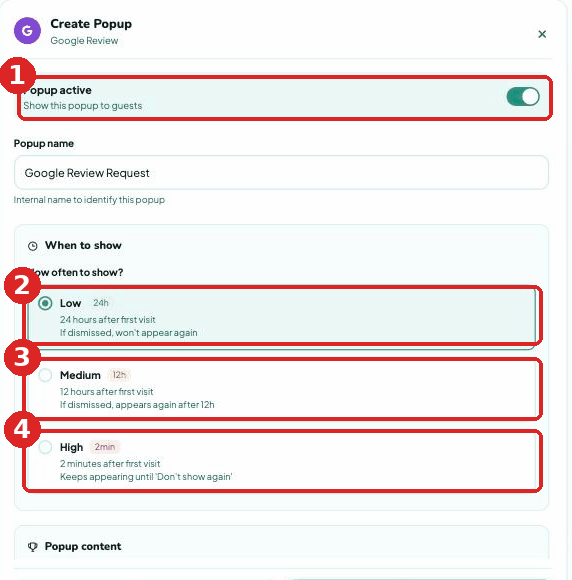
Under When to show → How often to show? pick one of three presets:
(1) Low (24h) — appears 24 hours after the first visit; if dismissed, it won't appear again.
(2) Medium (12h) — appears 12 hours after the first visit; if dismissed, it appears again after 12h.
(3) High (2min) — appears 2 minutes after the first visit and keeps appearing until the guest taps "Don't show again".
Low is the gentlest and best for most properties. Reserve High for genuinely time-sensitive messages only.
Tip: Only one popup shows per visit, no matter how many you have scheduled — guests are never bombarded.
Use the "Welcome from the GM" template — it greets guests on their first visit after a short delay.
On the Guest Journey Timeline, open the On Profile Load group and click Use on the "Welcome from the GM" template. It's preset to show on the 1st visit with a 2-second delay, so guests get a warm, personal greeting moments after opening your profile. Edit the title, message and button, then Publish.
FreeGuides ships ready-made templates grouped by when they trigger on the guest journey.
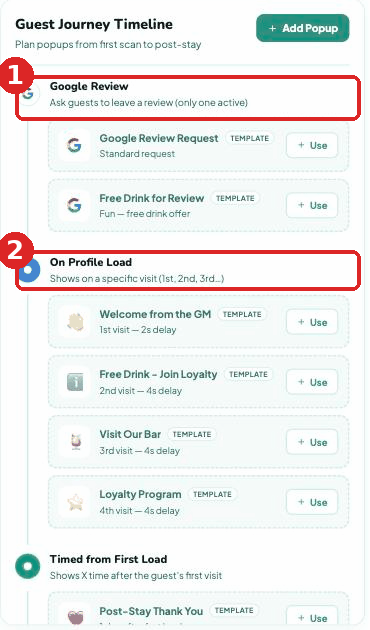
Templates are grouped by trigger on the Guest Journey Timeline:
(1) Google Review — Google Review Request (Standard) and Free Drink for Review.
(2) On Profile Load — Welcome from the GM (1st visit), Free Drink – Join Loyalty (2nd visit), Visit Our Bar (3rd visit) and Loyalty Program (4th visit).
(3) Timed from First Load — Post-Stay Thank You and other time-based messages.
Start from any template with Use, then customise the content.
Yes — the Time of Day trigger shows a popup only within the hours you set each day.
Use the Time of Day trigger and set a 24-hour schedule so the popup only appears within your chosen window. Two built-in templates make it easy: Breakfast Menu (06:00–11:00) and Order Dinner (18:00–22:00). Perfect for pushing the right message at the right moment without it lingering all day.
Guests get a clean, on-brand card — the live preview in the editor matches it exactly.
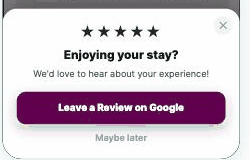
The review popup appears as a compact card over your profile: a 5-star row, a friendly headline like "Enjoying your stay?", a short message, a primary action button ("Leave a Review on Google") and a low-key "Maybe later" link. The editor's live preview shows the exact card guests will see before you publish.
The Popup manager (Operations → Marketing → Popups) plans messages across the guest journey, from first scan to post-stay. Add one with + Add Popup or start from a template — Google Review Request, Free Drink for Review, Welcome from the GM, Free Drink – Join Loyalty, Visit Our Bar, Loyalty Program. Images have a built-in cropper and the live preview shows exactly what guests get. Publish to go live.
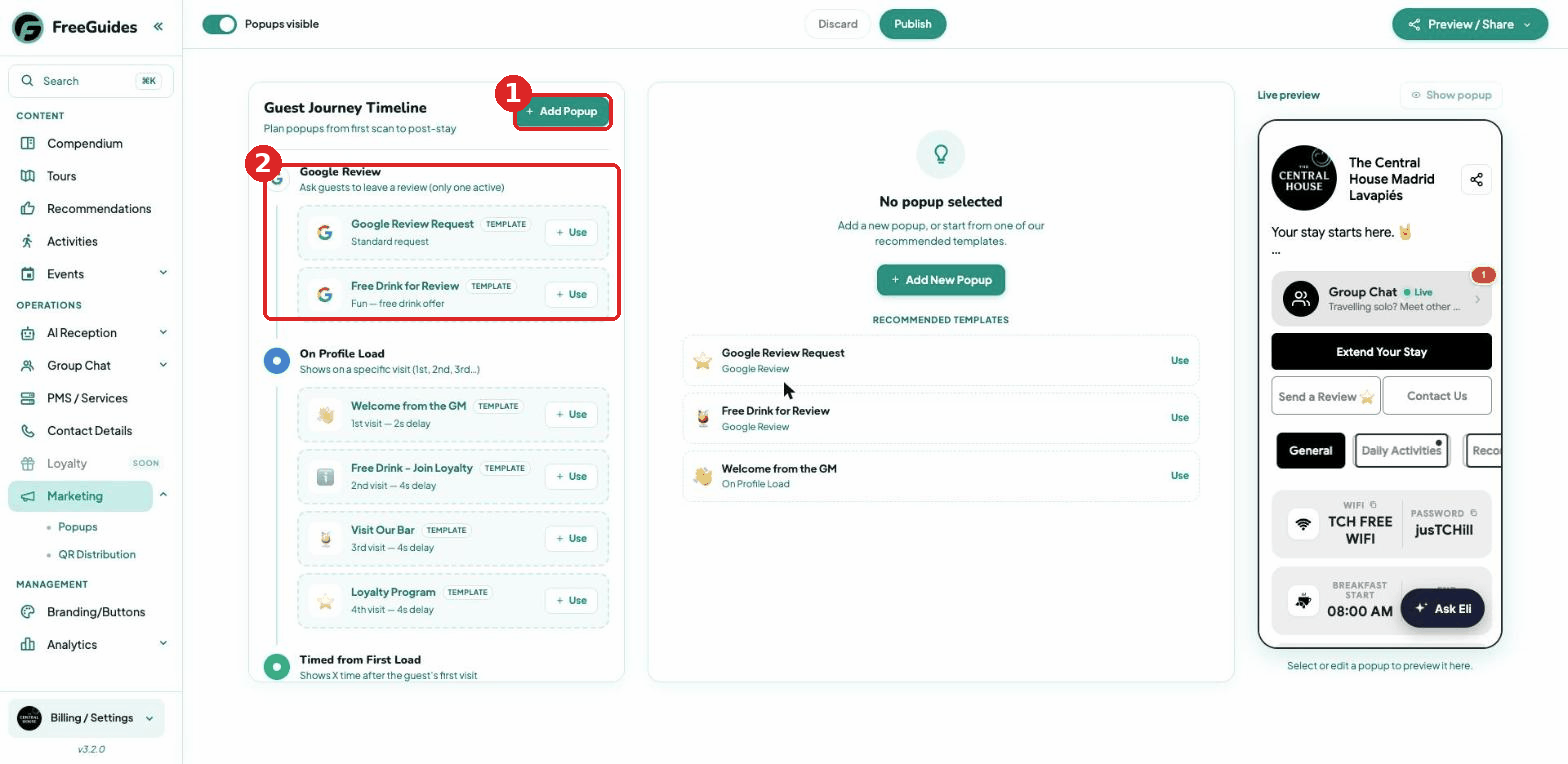
Choose a trigger type on the Guest Journey Timeline: Google Review (ask for a review — only one active at a time), On Profile Load (show on a specific visit — 1st, 2nd, 3rd... with a delay) and Timed from First Load (X time after the first visit). A one-popup-per-visit guardrail stops guests being spammed.
Yes! Create pop-ups offering a free drink for a Google review, loyalty program sign-ups, or special discounts at your bar. Add action buttons to link directly to review pages or booking forms.
Yes, you can set pop-ups to appear at specific times. Perfect for breakfast reminders at 7am or happy hour promotions at 5pm.
"Here is your key. Please scan this QR code for all the info you'll need during your stay — including group chat, events, local recommendations, and Wi-Fi." It is critical that staff ensure the guest actually completes the scan right then and there at the desk, not later.
"Heading out? Scan this to see our favourite local spots and walking tours. It's all curated by our team."
Show solo travellers how to use the group chat. Get them to sign up and post a message saying they are keen to meet others. This transforms the chat from a notice board into a social hub and dramatically improves their stay.
Yes. Remove any A4 posters containing guest info from rooms and replace each one with a single pink FreeGuides sticker. Make sure all that information is inside FreeGuides first. Less is more — one sticker beats a wall of paper.
Know this section well? Take the FreeGuides quiz and see where you land on the leaderboard.
Set up in 5 minutes. Live in 48 hours.
Tell us about your property in two minutes and we’ll build your own demo. Live in about 48 hours when you’re ready.
Create your own demo